

- Tham gia
- 13/09/2016
- Bài viết
- 158
như trên ạ
*****Nội dung được bổ sung thêm*****
uppp ai giúp vs
*****Nội dung được bổ sung thêm*****
uppp ai giúp vs


 cũng đang thắc mắc


Nó có hỏi cách tải?minecraftvn.net
Yêu cầu:
Vault
ProtocolLib
Chạy server
Tìm file Newitems vào đó có config.yml
Có 2 link
Cái trên dành cho 1.11 trở lên
Cái dưới 1.10 trở xuống
Copy link resourcepack
Lên phần Your-Resource-Pack-Link thì phải nhưng nhớ thế
/nireload thoát ra vào lại
Có bản 4.2.3 rồi cập nhật đi
 có tải méo đâu
chạy plugins bị chữ đỏ ở danh cách pl lsao?cách để thêm vào thôi
chạy plugins bị chữ đỏ ở danh cách pl lsao?
 ý là thêm vài cây kiếm mới vào thôi -..-" tìm hỏi cách nào chứ rsp thì dễ rồi
bác cho link fb hỏi 1 chút đc ko?
Cần pluginschạy plugins bị chữ đỏ ở danh cách pl lsao?
có đủ và bản mới nhất luônNó có hướng dẫn cách thêm mà !
Có bản cập nhật 4.2.4
*****Nội dung được bổ sung thêm*****
Cần plugins
Vault
ProtocolLib
Trong phần miêu tả có chỉ cách tạo đồ mới
Bản cũ xài bình thường chẳng qua ko fix lỗicó đủ và bản mới nhất luôn
*****Nội dung được bổ sung thêm*****
bạn cập nhập pl thì nó mới chạy chắc do bản cũ!


có fb kh mình xin"cách thêm resource pack vào Plugin NewItem"
Hỏi lạc đề quá, ý bạn muốn thêm 1 item vào RSP chứ có phải thêm RSP vô pl đâu
Còn muốn thêm thì mình thấy dễ mà, cứ "đọc kỹ hướng dẫn sử dụng trước khi dùng" là làm đc mà
Còn nếu vẫn chưa bít thì để mình bảo cho
có fb kh mình xin

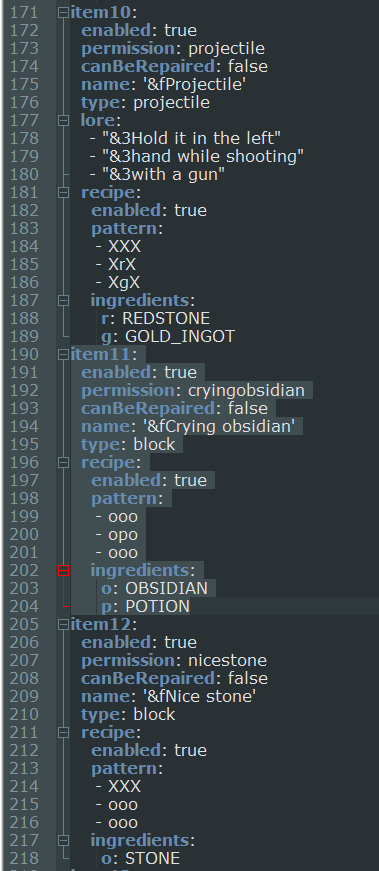
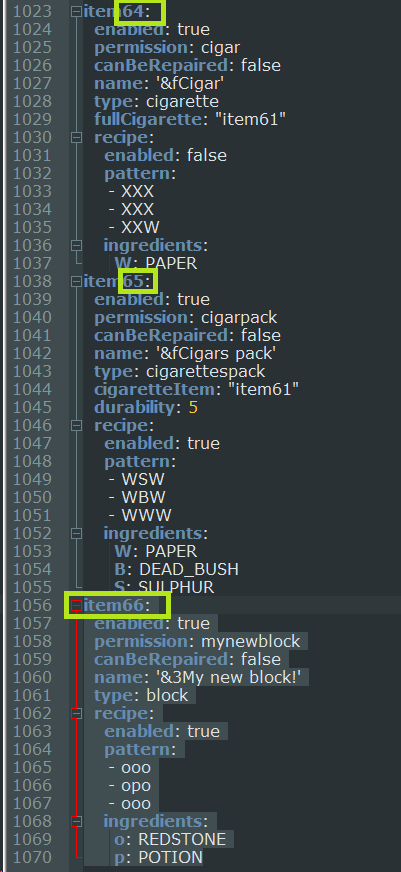
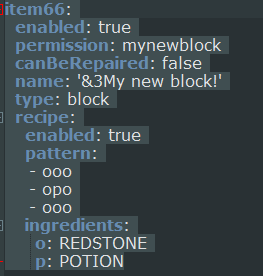
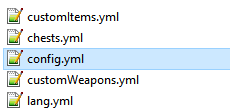
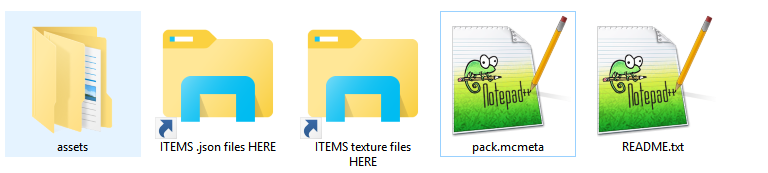
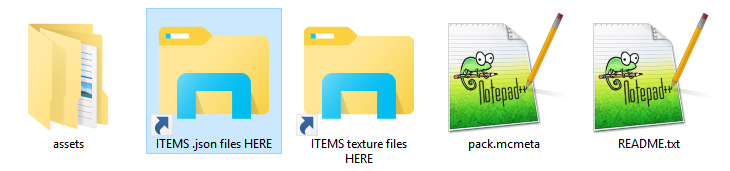
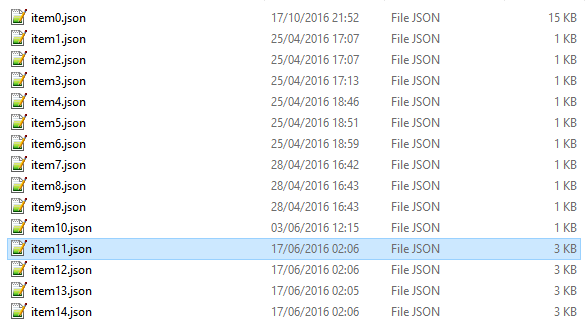
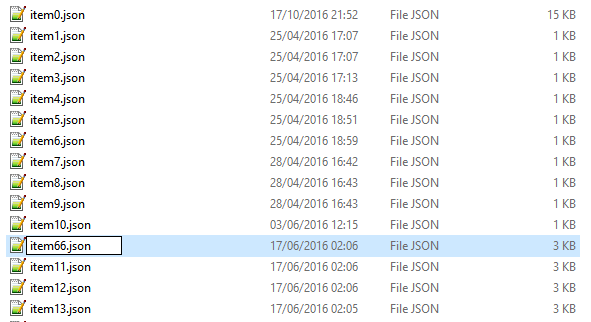



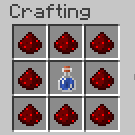
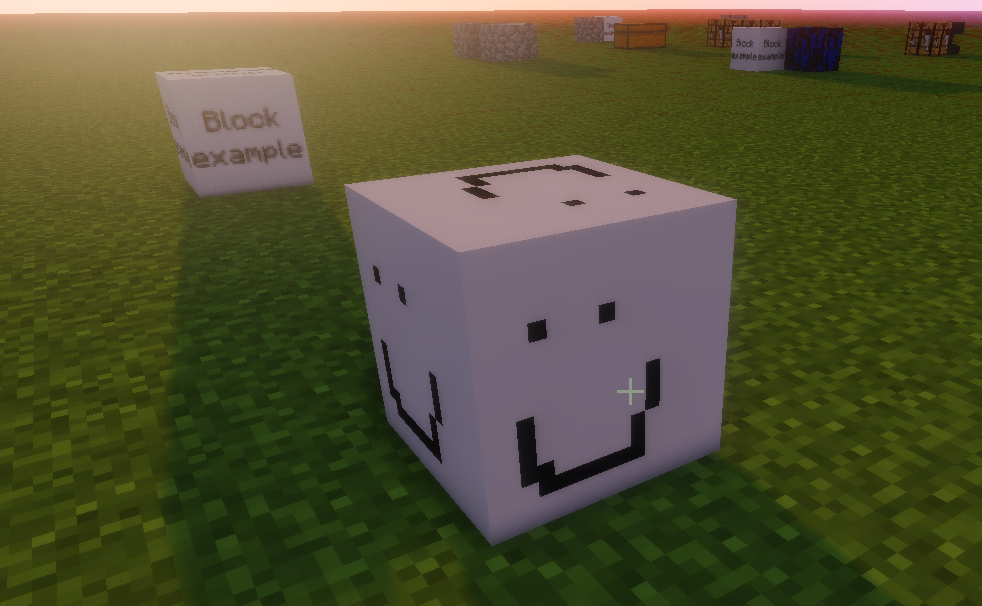
thêm sword thì không đc mới hay ,(")If you have problems just downgrade to the previous version and delete the config files (not chests.yml).
1. Open the NewItems folder in Plugins. Open the file customItems.yml (or weapons, bows, pickaxes, shields)
2. Copy one of the already created NewItems and paste it at the bottom of the file (depends of which type of item you want to create, in this case a block).
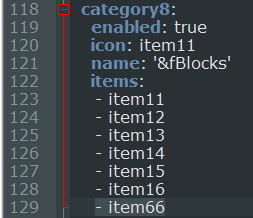
3. Change the text "item<number>:" with the last item number+1 (as you can see in the pic)
4. Now you can edit the name, permission and other variables of the item (depends on the type of the item, as you can see in other already created items.).
For example now we are creating a new block.
5. Now open the config.yml file in Plugins/NewItems folder, copy thedefault-resourcepack-1_11-DO_NOT_CHANGE or default-resourcepack-1_10-DO_NOT_CHANGE(use the first for 1.9 and 1.10, use thesecond for 1.11.2) , open your browser, paste the link and download the file.
6. Extract the file in a folder in your Desktop.
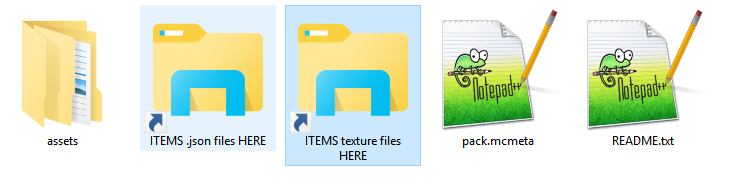
7. Click on the shortcut called "ITEMS .json files HERE". This is the folder where you can find items, weapons, pickaxes, shields and bows models files.
Open the "items" folder, because in this case we are creating a NewItem refering to the customItems.yml file (if you were creating for example a weapon you must open the "weapons" folder, obviously because you were refering to thecustomWeapons.yml file).
8. In this case we are creating an item, so copy the one you want imitate, in this case we will use an already created block.
The item11 (as seen in thecustomItems.yml) is a block, so we cancopy it and edit it to create a new customblock.
9. Rename the file like in the step 3 of this tutorial.
Then change the texture name to what you want
10. Open paint (if you need to create a texture) and create a pic of 16x16 ormultiples of 16 and save it.
11. Click on the shortcut called "ITEMS texture files HERE"
12. Paste the texture file in this folder (you need to paste it in the right subfoldertoo!) and rename it as in the step 9.
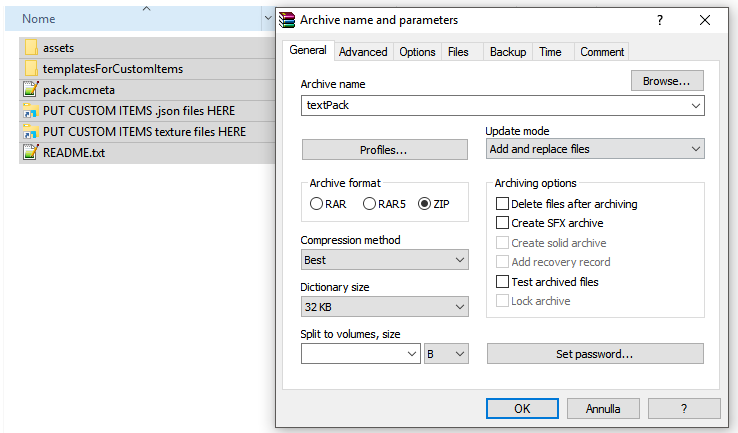
13. Now just zip the content of the folder you created in step 6 like in this pic.
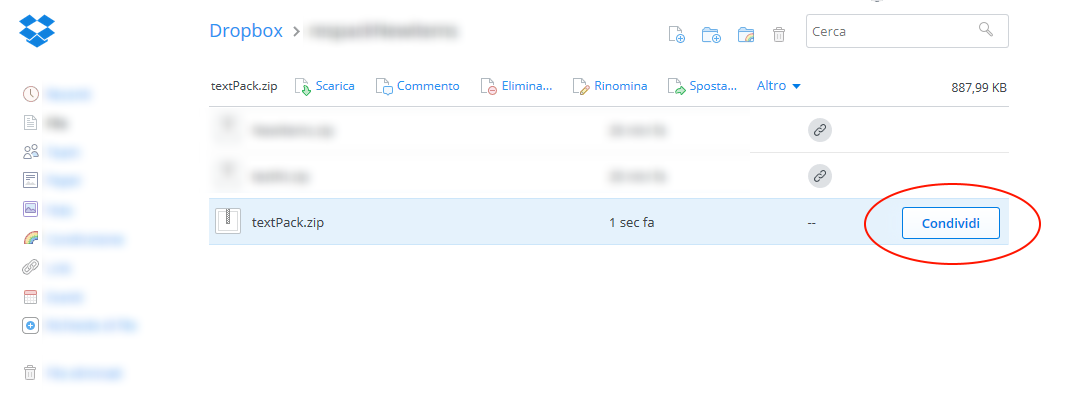
14. Upload the zip file on dropbox.com
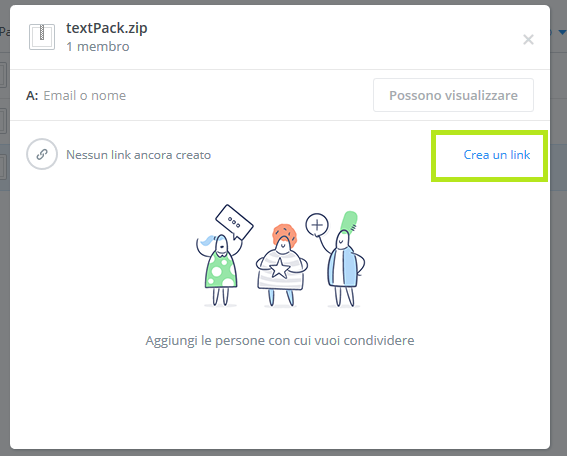
15. Click on the share button of the file
16. Create a link clicking on the button and copy it
17. Now open the config.yml file in Plugins/NewItems folder, replace the your-resource-pack-link with your new one.
18. Now replace the last "0" character of the link with a "1" and increment theyour-resource-pack-version field (DO THIS ON EVERY UPDATE OF YOUR RESOURCE PACK).
19. Open customMenu.yml and add youritem to a category of you choice (or create a new one copying an already created as example).
20. Now restart your server.
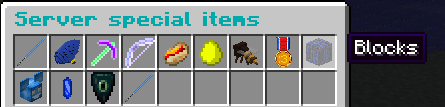
21. Use /ni command and click on the icon of the category you chose.
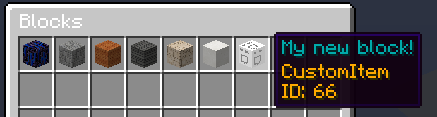
22. Select the NewItems you have just created and check the recipe.
23. Now craft it (or use /niget <item<number>> for example /niget item8 or /niget weapon5 , depending on what you created) and have fun!
Có thể tạo ra tất cả món đồthêm sword thì không đc mới hay ,(")
mình làm thử 1 cây kiếm nhưng nó bị tímCó thể tạo ra tất cả món đồ
Thức ăn
Kiếm + sound
Mấy item khác + sound
Cung + sound
Giáp
Súng (đc mà mình ko bt)

Bị tím ?mình làm thử 1 cây kiếm nhưng nó bị tím

|
Đã giải quyết cách thêm lệnh vào npc
|

|
Hỏi về Minecraft Xin hướng dẫn thêm các custom armor trong resoupack
|

|
Ai bt resource pack nào giảm lag k?
|

|
Gói tài nguyên Phần mềm tạo ResourcePacks - Cubik full crack
|

|
Gói tài nguyên Chia sẻ resource pack cực đẹp
|


