How to create your own custom items
Detailed tutorial here
If you have problems just downgrade to the previous version and delete the config files (not chests.yml).
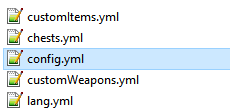
1. Open the NewItems folder in Plugins. Open the file customItems.yml (or weapons, bows, pickaxes, shields)
2. Copy one of the already created NewItems and paste it at the bottom of the file (depends of which type of item you want to create, in this case a
block).
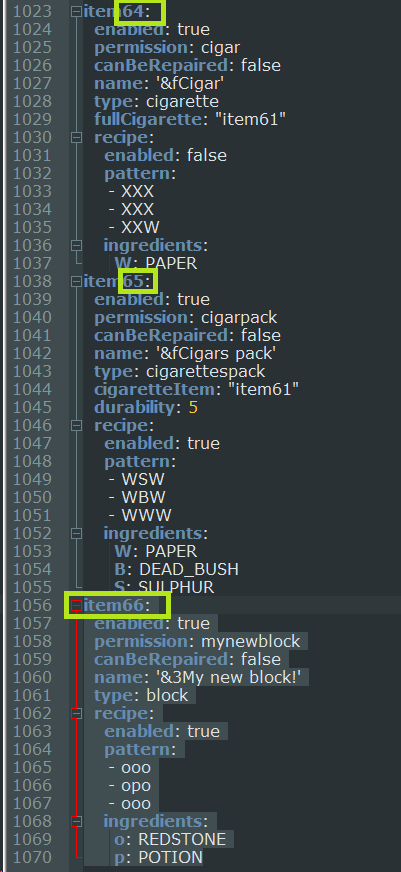
3. Change the text "item<number>:" with the last item number+1 (as you can see in the pic)
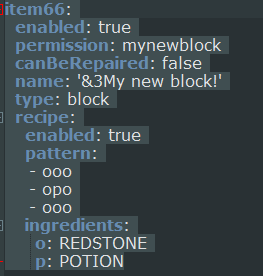
4. Now you can edit the name, permission and other variables of the item (depends on the type of the item, as you can see in other already created items.).
For example now we are creating a new block.
5. Now open the config.yml file in Plugins/NewItems folder, copy the
default-resourcepack-1_11-DO_NOT_CHANGE or
default-resourcepack-1_10-DO_NOT_CHANGE (use the
first for
1.9 and
1.10, use the
second for
1.11.2) , open your browser, paste the link and download the file.
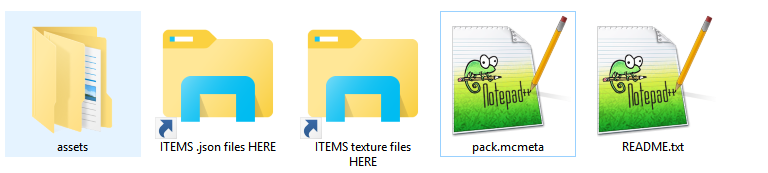
6. Extract the file in a folder in your Desktop.
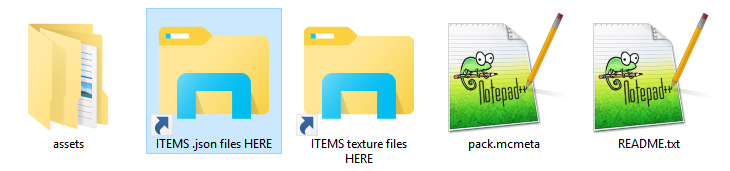
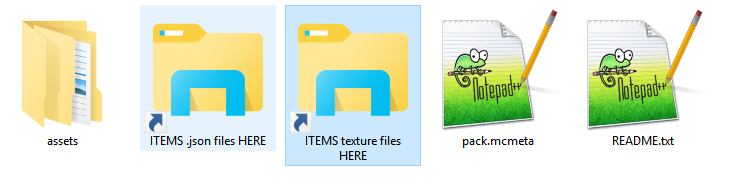
7. Click on the shortcut called "ITEMS .json files HERE". This is the folder where you can find items, weapons, pickaxes, shields and bows models files.
Open the "
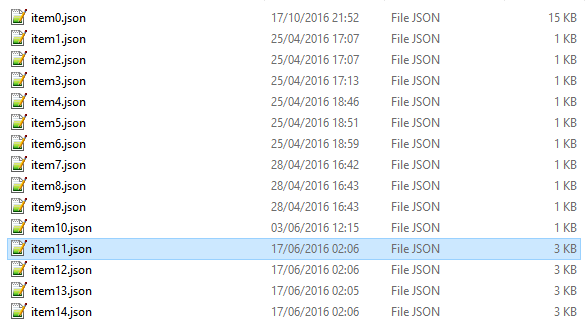
items" folder, because in this case we are creating a NewItem refering to the
customItems.yml file (if you were creating for
example a
weapon you must open the "
weapons" folder, obviously because you were
refering to the
customWeapons.yml file).
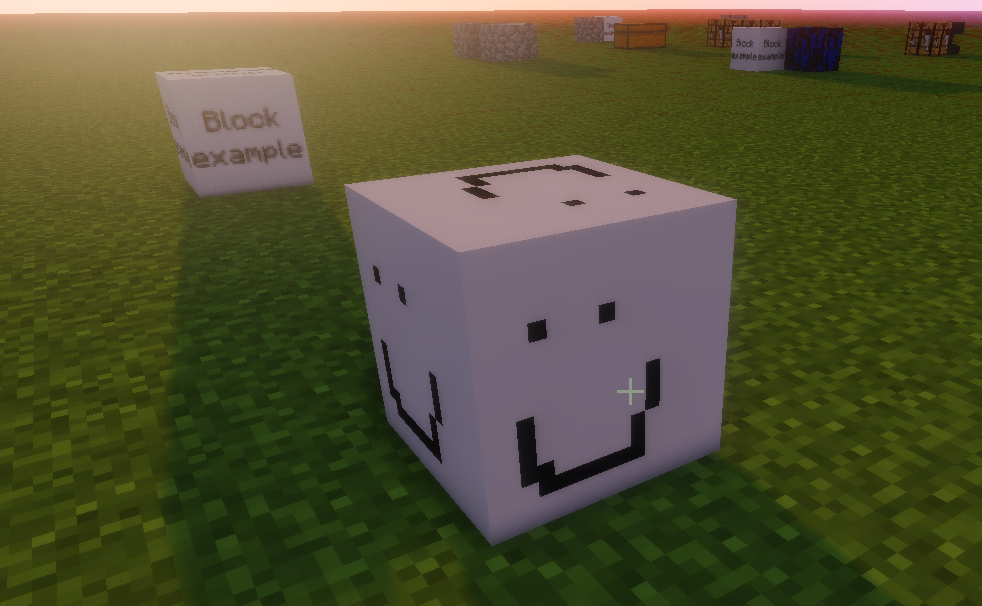
8. In this case we are creating an item, so copy the one you want imitate, in this case we will use an already created block.
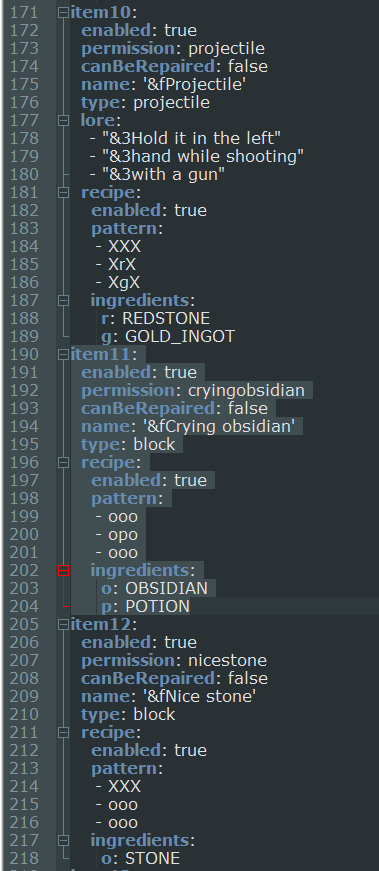
The
item11 (as seen in the
customItems.yml) is a
block, so we can
copy it and
edit it to
create a
new custom
block.
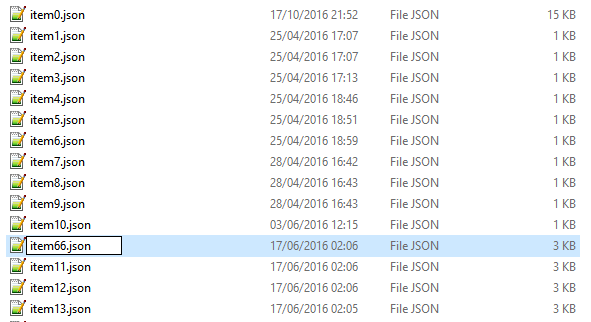
9. Rename the file like in the step 3 of this tutorial.
Then change the texture name to what you want
10. Open paint (if you need to create a texture) and create a pic of
16x16 or
multiples of 16 and save it.
11. Click on the shortcut called "ITEMS texture files HERE"
12. Paste the texture file in this folder (you need to paste it in the
right subfolder too!) and rename it as in the
step 9.
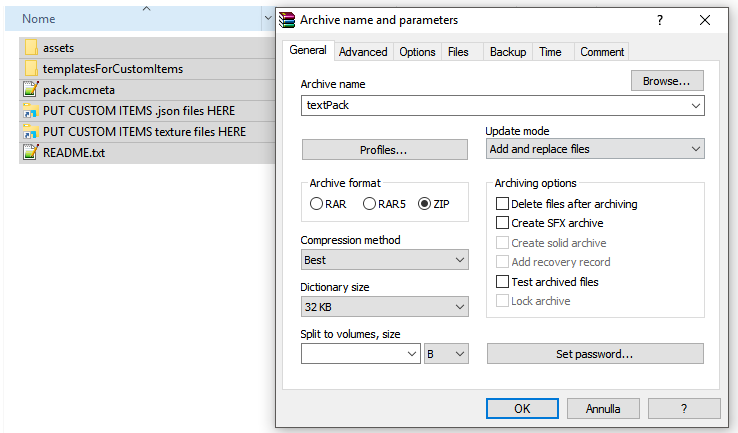
13. Now just zip the content of the folder you created in step 6 like in this pic.
14. Upload the zip file on
dropbox.com
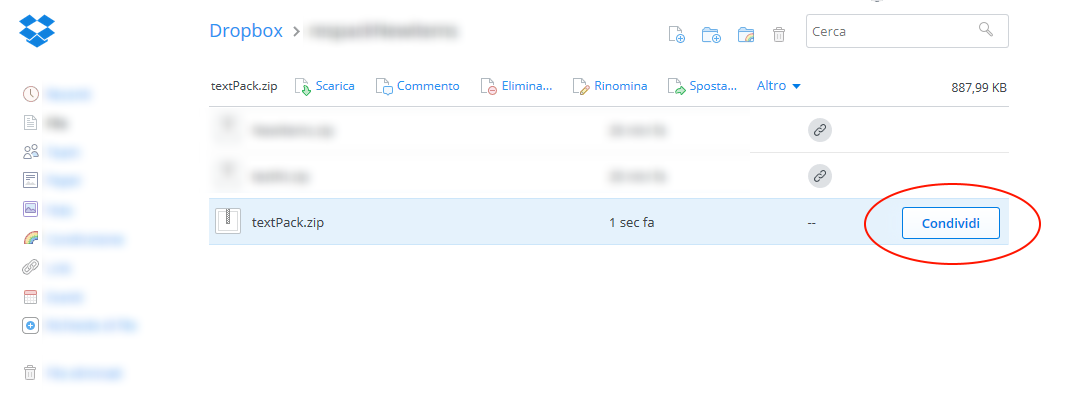
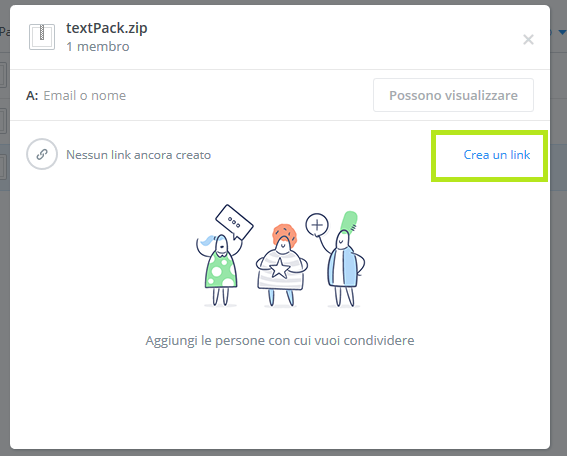
15. Click on the share button of the file
16. Create a link clicking on the button and copy it
17. Now open the config.yml file in Plugins/NewItems folder, replace the your-resource-pack-link with your new one.
18. Now replace the last "0" character of the link with a "1" and
increment the
your-resource-pack-version field (DO THIS ON EVERY UPDATE OF YOUR RESOURCE PACK).
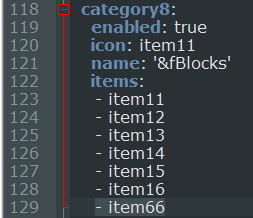
19. Open
customMenu.yml and add your
item to a
category of you choice (or create a new one copying an already created as example).
20. Now restart your server.
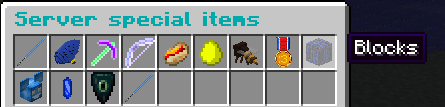
21. Use
/ni command and click on the icon of the category you chose.
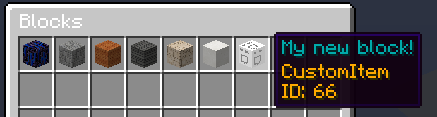
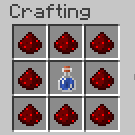
22. Select the NewItems you have just created and check the recipe.
23. Now craft it (or use
/niget <item<number>> for example
/niget item8 or
/niget weapon5 , depending on what you created) and have fun!